


Do you also love that feeling when you create a new Flutter project? Everything is clean, and you can set it up just as you want it to be.
You start setting up all your packages and the folder structure, you add different flavors, and then you change the package name/bundle id because you forget to use
--org “com.yourdomain.appname”while running the command from the terminal (or you may have created it from VS Code or AS).
And then, in the end, you remember that you also need to change the somewhat nicely looking Flutter app icon for your app with the proper one. This sounds like an easy task, right? But you couldn’t be more wrong.
If you only need to do this for Android and iOS and for only one flavor, it will take you at least 5-10 mins if you have all the sizes prepared (this phenomenon can occur if you have a smart designer in your team), if not it will take you much more. Now imagine that you have three different flavors (dev, staging, and prod), as every good production app should have. You need to change the app icon by 3x that amount of time.
If we go a step further, imagine that you support Mac, Windows, and the Web and that they all have different flavors. Now we are talking 3x the previous work that was already 3x. You will easily lose a whole day just to set up icons, and imagine if you need to change them at some point because maybe you support seasonal content or you are doing a rebranding.

You could argue with me not to make a big deal out of a simple, small thing like this, but the problem is real, and the truth is that no developer likes to do this task. But wait, that’s not the end of this story. There must be some magical cure (package) that can solve this problem. Someone was definitely annoyed too many times with this problem and wanted to scratch his own itch.
Yes, you are right, there are multiple packages out there that can do the job (some of them are really good, some not that much, some mupport only mobile and so on). Let’s see who the clear winner is by far.
Flutter Launcher Icons To The Rescue
This simple dev_dependencies package promises one thing: changing app icons easily from one place in less than a minute. Let’s see how it achieves that.
First things first, we need to add flutter_launcher_icons as a dev dependency in our pubspec.yaml file by running:
flutter pub add -d flutter_launcher_iconsOr manually inserting it under dev_dependencies:
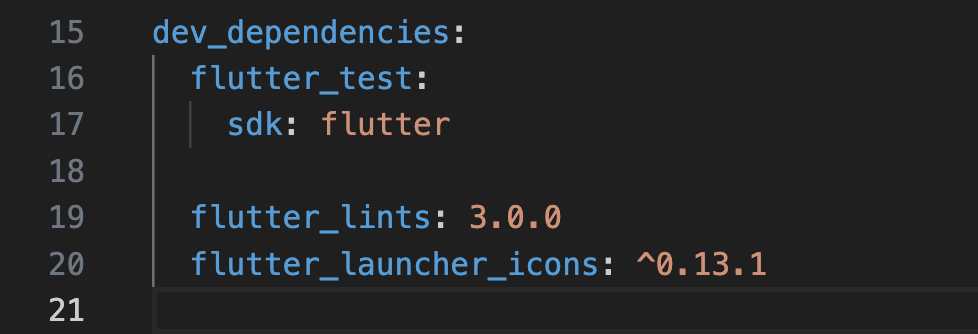
Ensure that you called flutter pub get before continuing to the next step.
The Config File
We can set up the configuration for flutter_launcher_icons in two ways:
Adding the configuration directly in our pubspec.yaml - which is convenient but also bloats the file and makes it less readable if we add other configurations from other packages
Creating a new yaml file for the configuration (any name will work) - the recommended way to do it
The configuration itself is self-explanatory:
flutter_launcher_icons:
  android: true # Generate for Android or skip
  ios: true # Generate for iOS or skio
  image_path: "assets/icon/icon.png" # The image used for app icon
  adaptive_icon_background: "hex color or path to image" # Android only
  adaptive_icon_foreground: "assets/image/foreground.png" # Android only
  image_path_ios: "assets/icon/ios-icon.png" # Optional, icon for iOS
  remove_alpha_ios: # Removes alpha channel for IOS icons
  web:
    generate: true # Generate for Web or skip
    image_path: "path/to/image.png"
    background_color: "#hexcode"
    theme_color: "#hexcode"
  windows:
    generate: true # Generate for Windows or skip
    image_path: "path/to/image.png"
    icon_size: 48 # min:48, max:256, default: 48
  macos:
    generate: true # Generate for macos or skip
    image_path: "path/to/image.png"
We can define different app icons for iOS and Android, as well as adaptive icons for Android. We also specify for each platform a different (or the same) icon that we want to use, and it will resize it properly to match that platform. You can read more about each property here.
The Result
After the configuration, we need to run it if we add it to the pubspec.yaml:
flutter pub run flutter_launcher_iconsOr if we created a new file, we specify the file with -f path-to-file:
flutter pub run flutter_launcher_icons -f <your config file name here>Once the command is finished, you should see a lot of files created/edited:
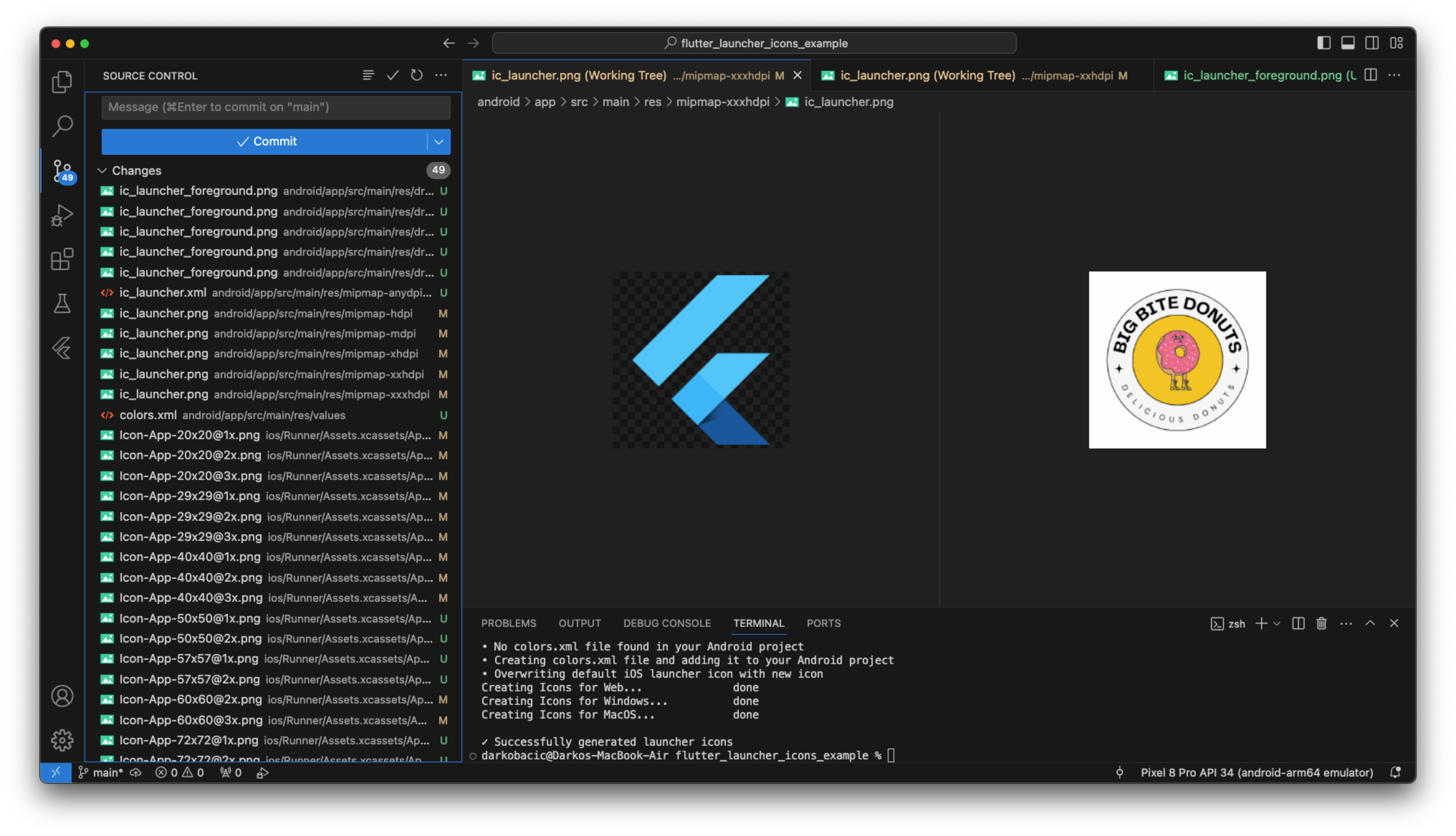
Running this on mobile phones, you should see these app icons:
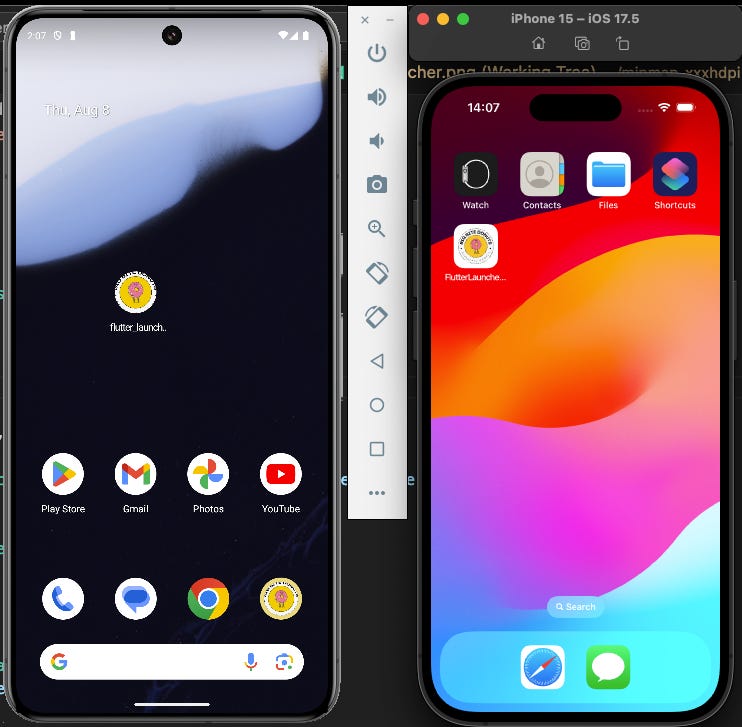
When using adaptive icons on Android, you need to follow some guidelines for the sizes, which you can read more about here.
Flavors
Now comes the part where you would ask me: “How can I support multiple flavors, as you already mentioned that all good projects should have different flavors?”. Great question!
The answer is as simple as it sounds: you create different config files, flutter_launcher_icons_dev.yaml, flutter_launcher_icons_staging.yaml, and flutter_launcher_icons_dev.yaml. As I mentioned already, you can name them however you want. You can see the example here.
I’ve been using this package on every project for the past four years, and I can’t imagine life without it. Kudos to Mark O’Sullivan and the fluttercommunity.dev for releasing this and other amazing packages. If you also enjoy flutter_launcher_icons, please consider liking them on pub.dev to show them some love. ❤️
If you enjoy my articles and find them useful, consider subscribing. It’s 100% free, and it helps me spread the word. I’m planning on releasing a weekly Flutter newsletter, so don’t miss that one. Subscribe to stay up to date.
See you in the next article.
Cheers,
Darko Bačić